If you’ve spent any time researching freelancing, content creation, or online business tools, you’ve probably seen one name everywhere:
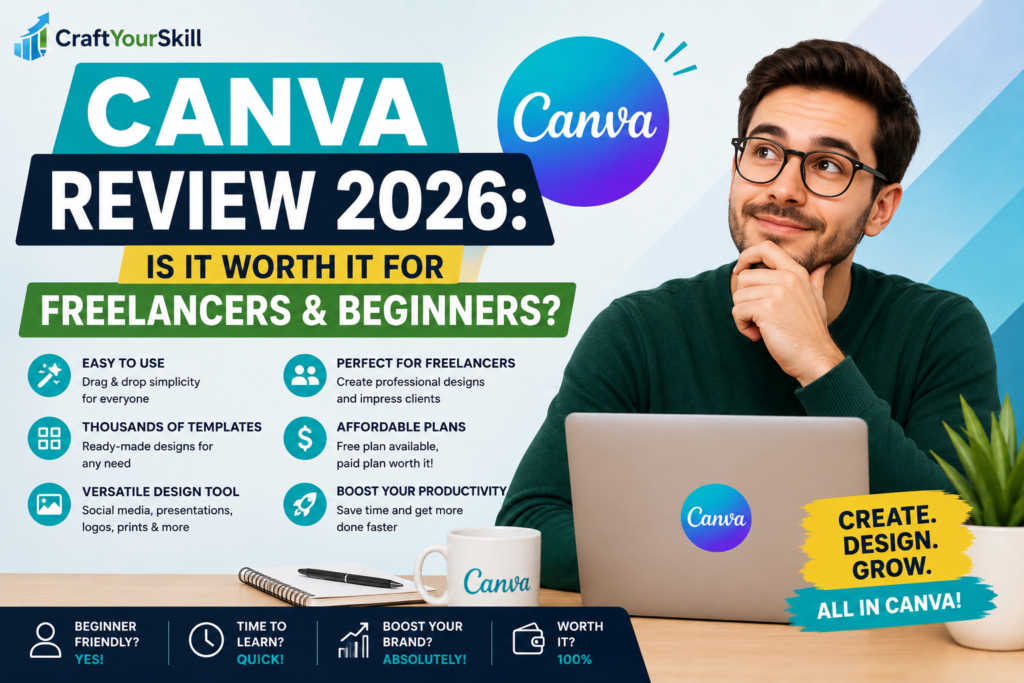
Canva
People use it for:
- Social media content
- Presentations
- Freelance client work
- Blog graphics
- E-books
- YouTube thumbnails
- Business branding
At this point, Canva is almost impossible to avoid.
But here’s the real question:
Is Canva actually worth using professionally, or is it just a beginner tool?
After all, many freelancers wonder:
- Can you really make money using Canva?
- Is the free version enough?
- Should you pay for Canva Pro?
- Can it replace professional design software?
In this guide, we’ll go beyond surface-level features and look at Canva from a practical freelancer perspective including how beginners actually use it to start making money online.
This is not going to be a generic “Canva has templates” type of review. We’ll cover realistic use cases, limitations, pricing, workflows, and whether Canva is truly worth investing your time into in 2026.
What Is Canva?
Canva is an online graphic design platform built to make design simple and accessible.
Unlike traditional design software, Canva focuses on:
- Drag-and-drop editing
- Ready-made templates
- Beginner-friendly design tools
- Fast content creation
The platform runs directly in your browser, meaning you don’t need powerful hardware or advanced technical knowledge.
This simplicity is one of the main reasons Canva became so popular among:
- Freelancers
- Small businesses
- Social media managers
- Bloggers
- Content creators
What Canva Is Actually Best For
One of the biggest mistakes people make is expecting Canva to do everything.
Canva is not meant for advanced professional-level graphic manipulation like Adobe Photoshop.
Instead, Canva excels at speed and practicality.
Here’s where it performs extremely well:
1. Social Media Content
This is Canva’s biggest strength.
You can quickly create:
- Instagram posts
- Reels covers
- Pinterest pins
- Facebook ads
- LinkedIn graphics
- TikTok thumbnails
The templates save an enormous amount of time.
Instead of designing from scratch, you customize existing layouts.
For freelancers managing multiple client accounts, this becomes incredibly efficient.
2. Freelance Client Work
This is where Canva becomes surprisingly powerful.
Many beginner freelancers use Canva to offer:
- Social media management
- Content creation
- Branding kits
- Presentation design
- Marketing materials
And clients often don’t care what tool you used — they care about the result.
If the design looks clean and professional, Canva is more than enough for many types of freelance work.
3. Blogging & Content Creation
Canva is excellent for bloggers and website owners.
You can create:
- Blog featured images
- Infographics
- Website banners
- Lead magnets
- E-books
This is especially useful for people building niche websites or personal brands.
The Real Advantage of Canva: Speed
This is something many reviews underestimate.
Canva is fast.
Very fast.
For example:
A beginner can create:
- An Instagram carousel
- A blog graphic
- A presentation slide deck
within minutes.
With traditional design software, the same process could take hours — especially if you’re inexperienced.
This matters because freelancers and online business owners often need consistency more than perfection.
What Makes Canva So Beginner-Friendly
There are several reasons beginners tend to stick with Canva.
Templates Save Massive Amounts of Time
Instead of staring at a blank screen wondering what to create, Canva gives you pre-designed layouts.
You simply:
- Choose a template
- Replace text and images
- Adjust colors if needed
- Export the design
This reduces overwhelm dramatically.
You Don’t Need Design Experience
Most beginners don’t understand:
- Typography
- Spacing
- Layout structure
- Color balance
Canva helps compensate for this through professionally designed templates.
This means even non-designers can create visuals that look polished.
Cloud-Based Simplicity
Because Canva works online:
- No installation is required
- Files auto-save
- Collaboration is easy
- You can access projects anywhere
For freelancers working across devices, this convenience is extremely useful.
Can You Actually Make Money Using Canva?
Yes — and many people already do.
This is one of the most practical aspects of Canva.
You can realistically start offering beginner-friendly services without becoming a professional designer.
Real Freelance Services People Sell Using Canva
Here are actual services beginners commonly offer:
Social media post design
Platforms:
Presentation design
Businesses constantly need:
- Pitch decks
- Sales presentations
- Webinars
- Course slides
YouTube thumbnails
This is one of the easiest entry-level services because creators always need consistent thumbnails.
Pinterest pin creation
Bloggers and affiliate marketers often outsource this.
Simple branding packages
Including:
- Logos
- Color palettes
- Social templates
Best Platforms to Find Canva Clients
Beginners usually start on:
- Fiverr
- Upwork
But you can also find opportunities through:
- Facebook groups
- Cold outreach to small businesses
A smart beginner strategy is creating:
- 5–10 sample designs
- A simple portfolio
- A niche-specific offer
For example:
“Instagram posts for fitness coaches”
or
“Pinterest graphics for bloggers”
This works far better than trying to offer “everything.”
Canva Free vs Canva Pro
This is one of the biggest questions beginners ask.
Canva Free
The free version is honestly very strong.
You still get:
- Thousands of templates
- Basic design tools
- Stock assets
- Collaboration features
For many beginners, this is enough initially.
Canva Pro
The Pro version becomes valuable when you start working consistently.
You unlock:
- Premium templates
- Brand kits
- Background remover
- Larger stock library
- Magic resize feature
- AI tools
The background remover alone saves huge amounts of time for freelancers.
If you begin making money using Canva, upgrading to Pro usually becomes worth it quickly.
The Biggest Weaknesses of Canva
No tool is perfect.
And Canva does have limitations.
Limited Advanced Editing
Compared to Photoshop, Canva lacks:
- Deep image manipulation
- Advanced retouching
- Complex effects
- Precision editing
Professional designers will eventually hit limitations.
Template Overuse
Because many people use the same templates, some designs can start feeling repetitive.
That’s why customization matters.
Beginners who slightly adjust:
- Fonts
- Layouts
- Colors
- Spacing
usually produce far stronger results.
Internet Dependency
Since Canva is cloud-based, working without internet can be limiting.
Who Should Use Canva?
Canva is ideal for:
- Beginner freelancers
- Bloggers
- Content creators
- Social media managers
- Small business owners
- Virtual assistants
Especially if your goal is:
- Fast execution
- Simple workflows
- Client content production
Who Should Probably Learn Photoshop Instead?
Photoshop may be better if you want:
- Professional graphic design careers
- Advanced branding work
- Photo retouching
- High-end commercial design
But for most beginners trying to start earning online quickly, Canva is the more practical first step.
Conclusion: Is Canva Worth It in 2026?
For beginners and freelancers:
Yes: absolutely.
The biggest strength of Canva is not that it’s the most advanced design tool.
It’s that it removes friction.
It helps people go from:
“I don’t know design”
to
“I can create useful content”
very quickly.
And in freelancing, speed and consistency matter a lot.